

<p>PDF to Text This app allows you to view PDFs. It has navigation facilities using Thumbnails or advancing by percentage or by page number.</p><p> 👉 Convert…
Find this application for Linux (.deb) at 👉 Linux Downloads
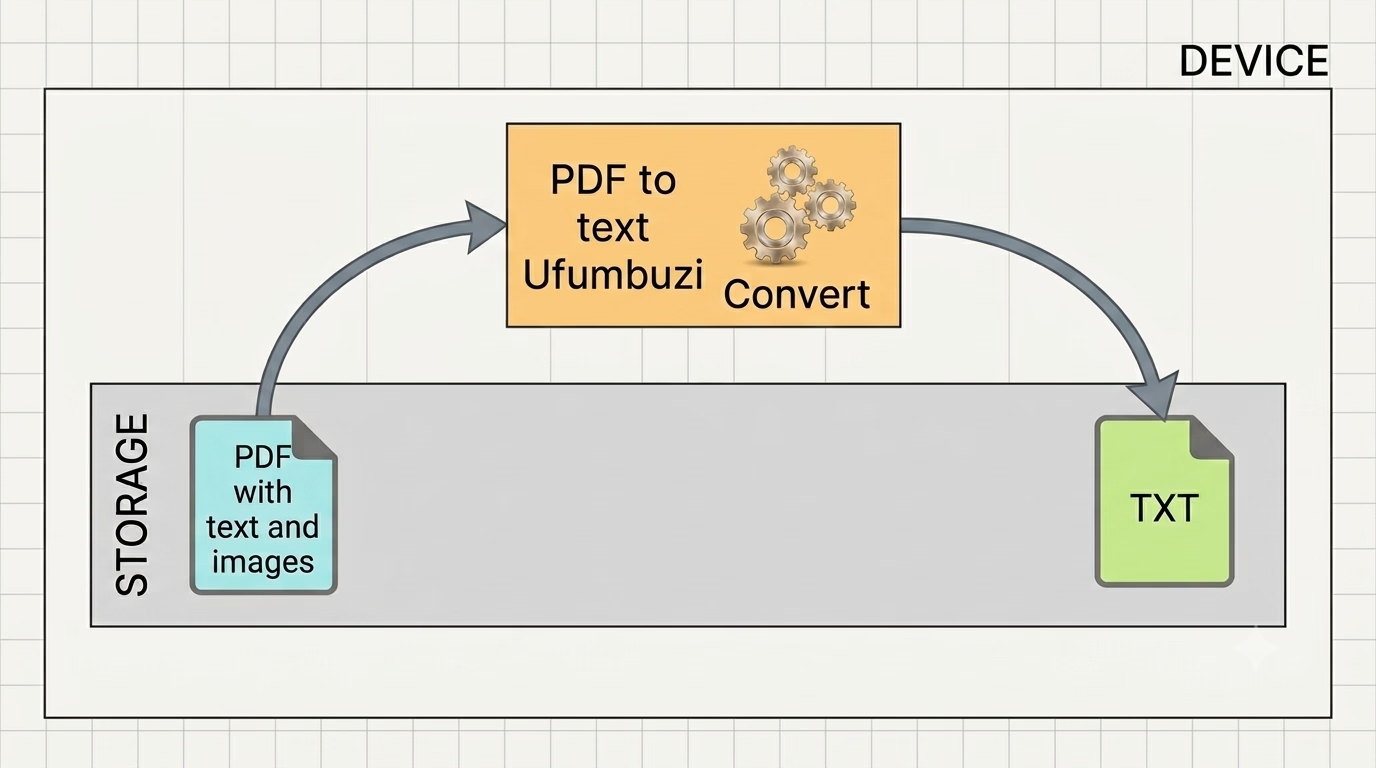
PDF to Text Converter – Ufumbuzi is a multifunctional digital tool designed specifically for managing PDF documents. It allows users not only to view files but also to easily convert content to text format. Its interface includes precise navigation features, facilitating movement between pages using specific numbers or reading percentages. Furthermore, it is free and prioritizes accessibility and ease of use.
This application is a PWA (Progressive Web App), which means you can use it without the need for heavy installations, always maintaining the free nature of the service through platform support.
It offers various functionalities designed for document management and viewing, including:
• Reading and converting files: In addition to functioning as a conventional PDF reader, the tool acts as a text converter, allowing the "Export to Text" option.
• Navigation tools:
◦ Allows navigation between pages using arrows.
◦ Includes a function to go to a specific page or a certain percentage of the document (for example, 50%).
◦ Provides a thumbnail view for previewing content.
Quick Guide
1. Document Navigation
The application offers three main ways to navigate the content:
• Page Controls: Use the ⬅ (Previous) and ➡ (Next) arrows to move forward or backward one page at a time.
• Thumbnails: Use the Thumbnails section to preview all pages and quickly jump to the one you need.
• Precise Jump ("Go to..."):
1. Click the "Go to..." button.
2. In the "Go to Page or Percentage" dialog box, enter a specific page number or percentage (for example, "50%").
3. Press "Go" to confirm or "Cancel" to close the window.
4. Conversion Function
• Export to Text: If you need to extract the document's content, select the "Export to Text" option. This tool converts the PDF into an editable text format.
PDF to Text is a progressive web app. Install it from your browser and it runs like a normal app, with its own icon and its own window.
Open PDF to Text in Chrome, tap the browser menu (⋮) and choose “Install app” or “Add to Home screen”.
Open PDF to Text in Safari, tap the Share button and choose “Add to Home Screen”.
Open PDF to Text in Chrome, Edge or Brave and click the install icon on the right side of the address bar.
<p>PDF to Text This app allows you to view PDFs. It has navigation facilities using Thumbnails or advancing by percentage or by page number.</p><p> 👉 Convert PDF to TXT</p>
Yes. PDF to Text is a free, ad-free progressive web app. It needs no sign-up and no payment details, and your data stays on your own device.
Yes. Once installed as a PWA, PDF to Text runs from your device and keeps working when you have no internet connection.
Open PDF to Text in your browser and choose “Install app” from the Chrome menu, or “Add to Home Screen” in Safari. It then opens with its own icon, like a native app.
PDF to Text works on Android, iOS, Windows, macOS and Linux, because it is a progressive web app.
Every app here is free, ad-free and open. Your support keeps them online and lets us keep adding new ones.
❤️ Support Ufumbuzi